



Two resizable panes. Users drag the bar with the mouse or touch, or focus it and use the arrow keys.
Why it helps
- Mouse, touch and keyboard
- Remembers size if you ask
- Simple
Where it fits
- List and detail views
- Editors with preview
- File browsers
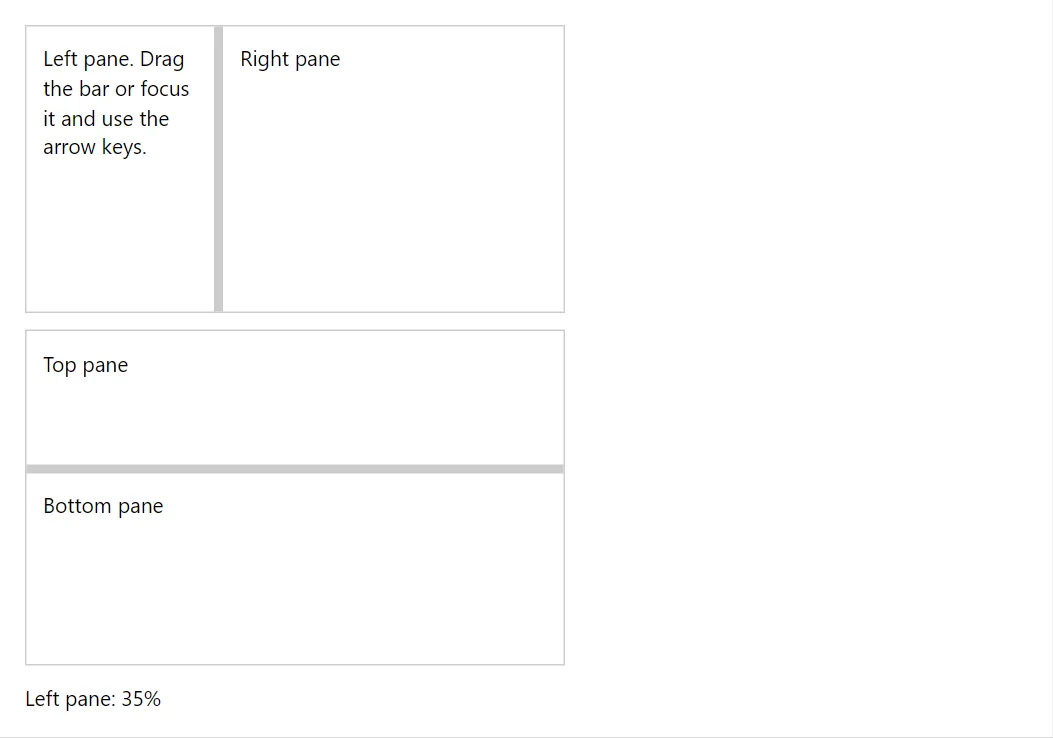
Example
<Splitter Size="30" CollapsiblePane="SplitterPane.First" @bind-Collapsed="_collapsed" SingleBelow="Breakpoint.Md" @bind-ActivePane="_active" Style="height:12rem">
    <First>Folders. Press Enter or double-click the bar to collapse this pane.</First>
    <Second>Messages. Below 768 px wide only one pane is shown.</Second>
</Splitter>
    <Button Variant="Variant.Outlined" OnClick="@(() => _collapsed = _collapsed == SplitterPane.None ? SplitterPane.First : SplitterPane.None)">Toggle first pane</Button>
    <Button Variant="Variant.Outlined" OnClick="@(() => _active = _active == SplitterPane.First ? SplitterPane.Second : SplitterPane.First)">Switch the pane of the narrow mode</Button>
<span>Collapsed: @_collapsed. Narrow mode shows: @_active.</span>

@code {
    private SplitterPane _collapsed;
    private SplitterPane _active = SplitterPane.First;
}
A short fragment. Add @using RayCraft.Blazor.Components to your page and use an interactive render mode.
Included in RayCraft Free. Working examples are in the GitHub repository (MIT); it holds example and demo code, not the library code.